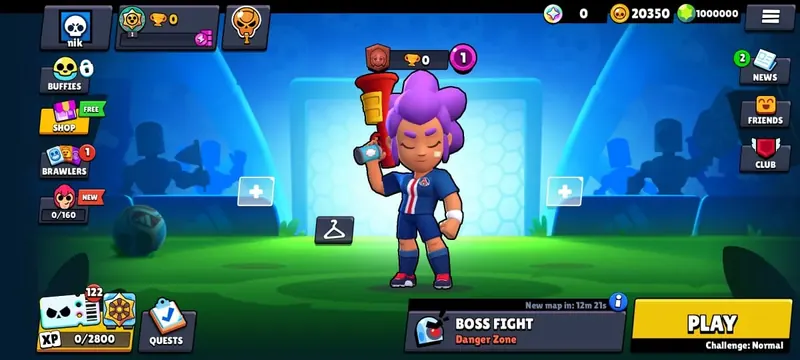
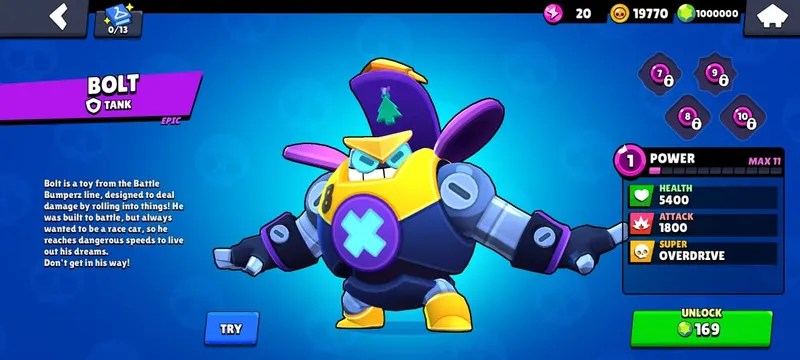
Download Nulls Brawl PCv67.264 - BlueStacks & LDPlayer
Nulls Brawl runs only as Android and iOS. So on a PC, you install the same APK inside an Android emulator. The full guide below covers BlueStacks, LDPlayer, NoxPlayer, and MEmu Play, with mouse precision, 60 FPS, and no thermal throttling.
- 4 emulators compared
- BIOS VT-x / AMD-V guide
- Render-backend benchmarks
- Class-specific key mapping
Quick jump
- System requirements - Min vs Recommended
- Emulator comparison - 4 options
- BlueStacks install - 6 steps
- LDPlayer install - 6 steps
- BIOS virtualization - +50 to 70% FPS
- Render benchmarks - DirectX, Vulkan, OpenGL
- PC vs phone
- Troubleshooting
Nulls Brawl PC system requirements
The minimum keeps the emulator alive. The recommended list locks in a steady 60 FPS without thermal hiccups.
| Component | Minimum | Recommended |
|---|---|---|
| Operating system | Windows 7, macOS Sierra 10.12 | Windows 10 or 11, macOS Catalina 10.15+ |
| Processor (CPU) | Any Intel or AMD dual-core | Intel 6th-gen Core or AMD Ryzen 2000 series, or newer |
| Virtualization | Intel VT-x or AMD-V must exist on the CPU | VT-x or AMD-V turned on in BIOS |
| RAM | 2 GB | 4 GB free for the emulator |
| Graphics card (GPU) | Integrated Intel HD (about 30 FPS at medium) | NVIDIA GTX 1050 or AMD RX 560 for steady 60 FPS |
| Graphics API | DirectX 11 or OpenGL 4.5 | Vulkan-ready driver for lower input lag |
| Free storage | 1 GB | 2 to 5 GB free for emulator and APK cache |
| Windows 11 note | Works on any Windows 11 build | TPM 2.0 enabled in BIOS for full security |
Old GPU drivers cause render errors on the emulator. So update them with GeForce Experience, AMD Adrenalin, or Intel Driver & Support Assistant before you install.
BlueStacks vs LDPlayer vs NoxPlayer vs MEmu Play
Four serious Android emulators run Nulls Brawl on PC. Pick the one that matches your hardware and your goals.
BlueStacks 5
4.7 / 5Best for most Windows users.
- Android
- Android 9 Pie (Hyper-V)
- Download
- About 500 MB installer
- Installed
- About 2 GB after install
- RAM idle
- About 1.2 GB idle
- Graphics
- DirectX, Vulkan
Visit official siteStrengths
- Smart Button Scheme auto-places controls
- Built-in Macro Recorder and multi-instance manager
- Active driver updates and Vulkan support
Trade-offs
- Ships some pre-installed extras
- Heavier RAM use than smaller emulators
LDPlayer
4.6 / 5Lighter on bloatware, friendly for mid-range PCs.
- Android
- Android 7.1 and Android 9
- Download
- About 600 MB installer
- Installed
- About 1.8 GB after install
- RAM idle
- About 900 MB idle
- Graphics
- OpenGL, DirectX
Visit official siteStrengths
- Lower idle memory than BlueStacks
- Built-in Chrome browser to grab the APK in one click
- Simple key mapping editor
Trade-offs
- Vulkan support is less mature
- Macro tools are basic
NoxPlayer
4.5 / 5Picks up where older PCs leave off.
- Android
- Android 7 base
- Download
- About 400 MB installer
- Installed
- About 1.5 GB after install
- RAM idle
- About 800 MB idle
- Graphics
- DirectX, OpenGL
Visit official siteStrengths
- Built-in script recorder for repeat tasks
- Runs on a 4 GB RAM laptop without choking
- Lower install footprint
Trade-offs
- Less frequent updates than BlueStacks
- Android base is older, so newer APKs may need tweaks
MEmu Play
4.3 / 5Multi-instance setups with several windows.
- Android
- Android 5.1 and Android 7.1
- Download
- About 350 MB installer
- Installed
- About 1.4 GB after install
- RAM idle
- About 750 MB idle
- Graphics
- DirectX, OpenGL
Visit official siteStrengths
- Starts faster than the other three
- Strong multi-instance manager
- Works on both old and modern Windows builds
Trade-offs
- Heavier CPU use under load
- Visual style feels dated
Install on PC with BlueStacks 5
Six steps. Around 10 minutes including the download.
- 1
Download BlueStacks 5 from the official site
Use bluestacks.com — third-party mirrors often bundle adware. Pick the Windows or macOS build that matches your OS.
- 2
Run the installer as Administrator
Right-click the .exe and choose Run as administrator. The installer needs admin to register virtualization drivers.
- 3
Accept the EULA and pick an install path
Keep the default path unless you are short on C: drive space. Total setup runs 5–15 minutes depending on CPU and internet speed.
- 4
Wait for first-time Android boot
BlueStacks finishes by downloading the Android system image. Do not close the window during this phase.
- 5
Drag the Nulls Brawl APK onto the BlueStacks window
After downloading the APK (~1.15 GB) from this site, drop the file directly onto BlueStacks. It detects the install and unpacks assets in 30–90 seconds.
- 6
Launch Nulls Brawl and unlock everything
Open the new icon on the BlueStacks home screen. Then tap Unlock all brawlers, Upgrade all brawlers, Unlock all skins, and Unlock all emotes & sprays in the shop.
In-game shop buttons — tap each once
- “Unlock all brawlers” — Adds every brawler to your roster instantly.
- “Upgrade all brawlers” — Brings every brawler to max level with full Gadgets and Star Powers.
- “Unlock all skins” — Equips every skin slot for testing.
- “Unlock all emotes & sprays” — Adds every emote and spray to your inventory.
Or use LDPlayer — 7 steps
Lighter on RAM, fewer pre-installed apps. The whole flow runs inside the emulator's bundled Chrome.
- 1.Download LDPlayer from its official portal (ldplayer.net).
- 2.Run the installer with default settings.
- 3.Wait for the Android boot screen on first launch.
- 4.Open the bundled Chrome browser inside LDPlayer.
- 5.Navigate to this page from inside the emulator browser, then tap the APK download button.
- 6.LDPlayer detects the .apk download and opens an install dialog automatically.
- 7.Tap Install and wait roughly 30 seconds for the home-screen icon to appear.
When does the PC build update after each Brawl Stars patch?
The PC version follows the same release cycle as the Android APK. Plan for a short waiting window after every official patch.
- Supercell ships a new Brawl Stars patch.
- The Nulls Brawl team rewrites the server database for the new build.
- The team tests the patch for crashes, exploits, and balance bugs.
- The PC APK lands on this page, 5 to 10 days after the official drop.
Why the wait? Early releases ship with crashes and exploit bugs. The 5-to-10-day test window catches the worst ones, so your matches stay stable.
Every release is announced on the official Nulls Brawl community channels listed below.
Enable VT-x or AMD-V in BIOS for a smooth emulator
Virtualization lets the emulator talk to your CPU directly. So it runs 50 to 70 percent faster than without. The steps below take about five minutes.
- Restart your PC and press DEL, F2, or F12 during the boot screen.
- Open Advanced Settings or CPU Configuration.
- Find the line for Intel VT-x, or AMD-V / SVM Mode.
- Switch the value from Disabled to Enabled.
- Press F10 to save, then confirm the restart.
Where to find it on each motherboard
Every BIOS hides the setting in a slightly different spot. Use the table below as a shortcut.
| Motherboard | BIOS path |
|---|---|
| ASUS | Advanced > CPU Configuration > Intel Virtualization Technology |
| MSI | OC > CPU Features > SVM Mode |
| Gigabyte | M.I.T. > Advanced Frequency Settings > Advanced CPU Core Settings |
| ASRock | Advanced > CPU Configuration > Intel Virtualization Technology |
| Dell / HP / Lenovo (laptops) | Security tab > Virtualization Technology |
- Open Control Panel.
- Go to Programs and Features.
- Click the link labelled Turn Windows features on or off.
- Uncheck Hyper-V, then restart the PC.
Performance tuning for the Nulls Brawl emulator
Five settings that move the needle on real PCs. Get them right and the emulator runs cool, smooth, and steady.
CPU cores
4 cores
Open emulator Settings > Performance and set CPU cores to 4. More than four does not help Nulls Brawl. Less than four causes stutter in busy fights.
RAM allocation
4 GB
Set RAM to 4096 MB. Higher values do not boost FPS. Lower values trigger stutter when the APK loads new assets.
Frame rate cap
60 FPS
Cap the emulator at 60 FPS. The game caps internally at 60, so 120 FPS only wastes GPU cycles. Drop to 30 FPS only on very weak PCs.
V-Sync
On for tearing, off for lag
Turn V-Sync on if you see screen tearing. Turn it off if you feel input lag. The setting has almost no effect on raw FPS.
Multi-instance
2 instances on 4 cores
Each instance needs its own cores and RAM. Two instances run fine on a 4-core / 8 GB PC. Three or more want at least 6 cores and 12 GB.
Want hard numbers for DirectX, Vulkan, and OpenGL? Skip to the render-backend benchmarks.
Render-backend benchmarks - DirectX, Vulkan, OpenGL
Numbers from a GTX 1660, Ryzen 5 3600, 16 GB RAM build. Your results will shift with hardware, but the order of finish stays the same.
| Backend | Avg FPS | Frame time | Input lag | Variance | Notes |
|---|---|---|---|---|---|
| VulkanBest | 60 | 33 ms | 30 to 40 ms | 3 to 5% | Best pick on modern Windows GPUs. Lowest input lag, steady frames. |
| DirectX 11 | 58 | 45 ms | 45 to 60 ms | 10 to 15% | Works on every Windows PC. Slightly higher CPU load. |
| OpenGL | 52 | 48 ms | 60 to 80 ms | Higher | Fallback for older GPUs and some Linux setups. |
Ranked players pick Vulkan for the lower input lag. If Vulkan does not work on your GPU, DirectX 11 is the safe default. OpenGL is last-resort for older systems.
Class-specific keyboard layouts for PC play
Three role-based defaults that beat the auto-mapped keys in most matchups. Tweak from here, do not start from scratch.
Assassin layout
Best picks: Crow, Leon, Edgar, Stu
Assassins need fast direction changes and one-tap dashes. Keep movement on the left hand and the Super on your thumb.
- W A S D
- Move
- Left click
- Normal attack
- Right click
- Aim assist
- Spacebar
- Super
- Shift
- Gadget / quick dash
- Q
- Hypercharge
Controller layout
Best picks: Byron, Piper, Mandy, Angelo
Controllers play long range. So lower your mouse sensitivity for clean micro-adjustments, and keep the Super on a thumb key.
- W A S D
- Move
- Left click
- Attack
- Right click
- Zoom / scope
- E
- Super (cast while aiming)
- F
- Gadget
- C
- Crouch / hold
Tank layout
Best picks: Frank, El Primo, Hank, Draco
Tanks live up close. So raise mouse sensitivity for quick camera swings, and keep your Super on a comfy spot like R.
- W A S D
- Move
- Left click
- Melee attack
- R
- Super
- Q
- Auto-aim at point-blank
- Shift
- Gadget
- X
- Hypercharge
Advanced control features
Four BlueStacks and LDPlayer features that go beyond basic key mapping. So you spend less time fighting the controls.
Smart Button Scheme
BlueStacks reads the on-screen UI and places keys for you. Turn it on under Game Controls. So you skip the manual drag-and-drop step.
Image Recognition
Track health bars, ammo, or cooldown timers as small image regions. So your scripts can react when a value changes.
Gamepad mode
Plug in an Xbox or PlayStation controller over USB or Bluetooth. The emulator maps analog sticks to virtual touch zones, and triggers act as primary and secondary attacks.
Custom shortcuts
Put emotes on Numpad 1 to 4. Set ping and quick-chat commands on F1 to F4. So you can talk to your team without moving the mouse off target.
Need to learn which class each brawler belongs to? The roster is listed in-game once you connect to the Nulls Brawl server.
Why Nulls Brawl plays better on PC than on phone
Five clear wins for the desktop build. Each one comes with numbers, not just claims.
Performance and stability
Desktops hold a steady frame rate. Phones throttle hard during long sessions. The table below sums up the gap.
| Metric | PC | Smartphone |
|---|---|---|
| Frame rate | Steady 60 FPS | 30-60 FPS with drops |
| Heat over time | Cool after 4+ hours | Hot after 10-15 minutes |
| CPU throttling | Almost none | Heavy under load |
| 3v3 fight stability | No frame drops | Frequent stutters |
A dedicated GPU keeps the game at 60 FPS through busy 3v3 fights. Desktop cooling also stops thermal throttling, even in long sessions.
Power supply and battery
Phones run out of battery fast under gaming load. Desktops do not. Gaming laptops sit between the two.
Smartphone
2 to 3 hours of intense play before you need a charger.
Desktop PC
Unlimited play time. The wall plug carries the load.
Gaming laptop
4 to 6 hours on a charge, depending on the screen brightness.
Mobile batteries also age faster under gaming heat. Desktops avoid that wear, so the same setup plays the same way years later.
Multitasking on the side
A desktop runs the game and other apps at the same time. So you can stream, chat, and check a tier list without leaving the match.
OBS Studio
Capture gameplay for Twitch or YouTube without dropping frames. NVENC or AMD VCE keeps CPU load under 10 percent.
Discord
Voice chat with your team while you play. Push-to-talk works on any spare key.
Browser tabs
Pull up guides, tier lists, or pro picks on a second monitor while you queue.
Spotify
Stream music in the background. A 6-core CPU handles the emulator and the audio in parallel.
Bigger display, bigger field of view
A 27-inch monitor is roughly four times the screen area of a 6-inch phone. So you spot enemies sooner and read team fights faster.
4 times the area
Same brawler models look about three times as large.
40% more battlefield in view
You see flanks before they reach you, so dodges land more often.
0.5 to 1 second earlier reads
Spotting wins fights. The extra viewing area gives you a head start every match.
UI is 300% larger
Health bars, ammo, and timers are easy to read without squinting.
Precise input from mouse and keyboard
A gaming mouse is far more precise than a fingertip. So your skillshots land more often, especially at longer ranges.
| Input | Precision | Reaction | Skillshot rate |
|---|---|---|---|
| Gaming mouse | 0.5 mm at 400-800 DPI | 30-40 ms | +20 to +30% hits |
| Touchscreen | 5-10 mm finger area | 60-80 ms | Base value |
Keyboard shortcuts also stop the kind of stray taps you get on a phone. As a result, every input is on purpose.
Run Nulls Brawl on a weak PC or old laptop
Seven tuning moves plus four resolution presets. Pick the ones that match your hardware, and the game stays playable on dual-core machines.
- Cut the emulator resolution. 1280x720 is enough on weak GPUs, and Nulls Brawl scales the UI for you.
- Turn off antialiasing. FXAA and MSAA both eat 10 to 15% of GPU time, and aliasing barely shows on this game.
- Drop shadow quality to Low. The change saves another 5 to 8% of GPU work.
- Close background apps. Chrome, Discord, and Steam can each take 200 to 400 MB of RAM.
- Set the emulator to 2 CPU cores. Dual-core PCs run better with fewer cores, not more.
- Swap to a lighter emulator. NoxPlayer uses around 200 MB less RAM than BlueStacks at idle.
- Switch Windows Power Plan to High Performance. So the CPU does not throttle under load.
Resolution presets for the emulator
Four ready-to-pick resolutions, sorted from sharp to ultra light. Match the preset to your GPU.
1920 x 1080
Best balance
Sharp text, clean character models, moderate GPU load. Great on a GTX 1050 or RX 560.
2560 x 1440
High-end only
Crisper UI, but 40% more GPU load. Use on a GTX 1660 or RX 6600 and up.
1600 x 900
Weak GPU
Scales cleanly on a Full HD monitor. Text stays readable, models look slightly softer.
1280 x 720
Minimum spec
Last-resort setting for old laptops. The game is still playable, just visibly soft.
Automate Nulls Brawl on PC with macros and multi-account
Emulators let you record clicks, write small scripts, and run several accounts at once. Use the tools below for grinding and stress tests, not for ranked play.
Macro Recorder workflow
- Open the emulator and click the Macro Recorder icon in the sidebar.
- Press Record new macro, then run the steps you want to repeat.
- Stop the recording. Give the macro a clear name and save it.
- Play the macro back. Keep playback speed at 1x for natural timing.
LUA scripting tips
LUA is the scripting language behind most emulator macros. Keep it short, randomize timing, and read what is on screen.
- Randomize delays between actions. So scripts feel less robotic.
- Add 100 to 500 ms of variable timing between clicks.
- Use Image Recognition for adaptive flow. So the script reacts to what is on screen.
- Log script output to a file. So you can spot which step failed.
IF-THEN logic examples
Conditional logic turns dumb macros into smart ones. Three useful rules to copy into your scripts.
IF health bar < 30% THEN retreatPulls a brawler back when they are about to die. Useful for AFK farming runs.
IF ammo full THEN engagePushes forward only when the script has full damage available.
IF Super charged AND enemy in range THEN castTriggers the Super at the right moment in a fight.
Multi-account setup
Each emulator instance is its own isolated phone. So you can run two or three Nulls Brawl accounts side by side.
- Open the Multi-Instance Manager from the sidebar.
- Click New Instance and pick an Android version that matches your APK.
- Set CPU cores and RAM for each instance. So one instance does not starve the others.
- Install Nulls Brawl in each instance. The data folder stays separate per instance.
- Use Duplicate to clone a configured instance. So you skip the setup step the next time.
Heads up: automation tools and multi-account farming may violate the spirit of fair play. Use them only on test accounts, never against real opponents in ranked queues.
Six PC install problems and how to fix them
Each fix is specific to PC sideloading on BlueStacks, LDPlayer, NoxPlayer, or MEmu. So no generic phone tips below.
Problem 1: The emulator install hangs or stalls
Cause: Slow download speeds, antivirus blocking the setup file, or a user account without admin rights. Big emulator packages need 1 to 2 GB of clean writes.
Fix:
- Test your speed. A 10 Mbit/s line takes 20 to 60 minutes; cable or fiber drops that to 5 to 10 minutes.
- Add the emulator to your antivirus whitelist. Defender, Avast, and McAfee sometimes quarantine emulator files.
- Right-click the installer and pick Run as administrator. Standard accounts cannot install drivers.
Problem 2: Black screen when the emulator starts
Cause: Outdated GPU drivers, hardware rendering turned off, or a resolution your monitor cannot show.
Fix:
- Update GPU drivers. NVIDIA users grab the latest Game Ready Driver; AMD users use Adrenalin Edition.
- In emulator Settings, set Graphics Engine Mode to Performance Mode, not Compatibility.
- Drop the emulator resolution to your monitor's native resolution. 4K settings on a 1080p screen produce a black output.
Problem 3: The game logo freezes on first launch
Cause: A corrupted APK download, not enough RAM, or an Android cache overflow inside the emulator.
Fix:
- Check the APK file size against the value listed on this page. Re-download from the official link if the bytes do not match.
- Close other heavy apps. Raise the emulator RAM allocation to at least 2 GB in Settings > Performance.
- Open emulator Settings > Apps > System Apps and tap Clear Cache. The action removes temporary data, not your save.
Problem 4: Low frames or stutter during 3v3 fights
Cause: Virtualization is off, your power plan is on Balanced, or thermal throttling is kicking in.
Fix:
- Open Task Manager > Performance > CPU and check that Virtualization shows Enabled.
- Switch Windows Power Plan to High Performance in Control Panel > Power Options.
- Watch CPU temps with HWiNFO64. Values above 85 C trigger throttling. Clean the CPU cooler or replace thermal paste.
Problem 5: Emulator cannot connect to Nulls Brawl servers
Cause: Your client is older than the server, a firewall blocks the emulator, or the private server is under maintenance.
Fix:
- Compare your APK version with the latest one on this page. If older, re-install over the running emulator.
- Add the emulator to your Windows Firewall allow list under Control Panel > Windows Defender Firewall > Allowed apps.
- Check the Telegram or Discord channel for a maintenance message. Wait 30 to 60 minutes and try again.
Problem 6: The emulator crashes after a fresh Windows update
Cause: Windows updates sometimes re-enable Hyper-V, which clashes with VT-x. Or a new GPU driver breaks Vulkan support.
Fix:
- Disable Hyper-V again under Control Panel > Programs > Windows Features and restart.
- Roll the GPU driver back one version through Device Manager > Display adapters.
- Switch the emulator render backend from Vulkan to DirectX 11 as a quick test.
Safety notes for Nulls Brawl on PC
The emulator runs in a sandbox, so most risk is small. Still, the five points below apply every time you install.
- 1
Project status
Nulls Brawl is a community-built project. It is not made or supported by Supercell. So you will not get official help from the App Store or Google Play teams.
- 2
Where to download the APK
Get the APK only from this page or the official mirror linked here. Third-party sites may bundle tracking or adware into the file, which is harder to spot inside an emulator.
- 3
Emulator permissions
Allow Storage and Internet inside the emulator. Deny Camera, Microphone, and Location. Nulls Brawl does not need them, so you stay safer.
- 4
Save data is server-only
Progress lives on the private server, not in the cloud or on your PC. It cannot sync back to the official Brawl Stars account, ever.
- 5
Treat the server as a sandbox
Private servers are test environments. So treat them as fun playgrounds, not permanent storage. Save data could reset between major patches.
Important: sideloading a third-party APK is your choice. Verify the SHA-256 on this page against your downloaded file before you install.
Nulls Brawl PC FAQ - Windows and macOS questions
Ten short answers on update timing, controllers, multi-PC use, antivirus, BIOS, and the resolution sweet spot.
When does the PC version update after a new Brawl Stars patch?
About 5 to 10 days after each official patch. The Nulls Brawl team rewrites the server database for the new build, then tests for crashes and exploits. So you get a stable PC release, not a buggy early drop.
Will my real Brawl Stars account get banned for playing on PC?
No. Nulls Brawl on PC runs through an emulator, on its own private servers. So Supercell does not see your activity, and your official account stays untouched. As a safety habit, never sign in with your real Supercell ID inside the emulator.
How do I update the Nulls Brawl client on my emulator?
Download the new APK from this page, then drag it onto the running emulator window. The emulator overwrites the old install in place, and your save data stays. The full update takes 30 to 60 seconds.
Why does the emulator say it cannot connect to the server?
Three common causes: your APK is older than the server, your firewall is blocking the emulator, or the private server is under maintenance. Add the emulator to your Windows Firewall allow list, and check the Telegram or Discord channel for outage notices.
Can I play Nulls Brawl on more than one PC?
Yes. Install the APK on each PC the same way. There is no cloud sync between machines, so use the emulator's Backup & Restore feature to move accounts. Save the backup to a USB stick or cloud drive, then restore on the second PC.
Is a controller better than keyboard and mouse?
Keyboard plus mouse wins on precision. So competitive players pick it for skillshots and flicks. A controller feels nicer on the couch, especially for tank brawlers. Analog sticks also give you graduated movement that WASD cannot match.
What resolution should I run the emulator at?
1920 x 1080 is the best balance on mid-range hardware. Bump to 2560 x 1440 only on a high-end GPU. Drop to 1600 x 900 on weak GPUs, and 1280 x 720 on very old laptops. The game scales the UI either way.
Do I need to enable VT-x or AMD-V?
Yes. Virtualization lets the emulator talk to your CPU directly. Without it, the emulator runs 50 to 70 percent slower. Turn it on in BIOS, then check Task Manager > Performance > CPU for the line Virtualization: Enabled.
Will an antivirus block the emulator installer?
It can. Windows Defender, Avast, and McAfee sometimes flag emulator setup files as false positives. Add the emulator folder to your antivirus whitelist before you run the installer, then re-enable real-time scan after install.
Can I play with friends across PC and phone?
Yes, as long as you all use the same Nulls Brawl client version. The private server matches PC and phone players in the same lobbies. There is no crossplay with the official Brawl Stars on the App Store or Google Play.